




How to Perform a Basic Search
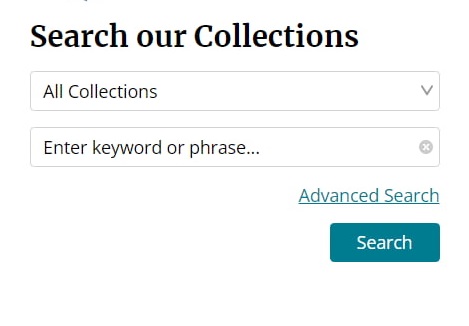
- On the Home page, go to the Search our Collections sections
- Select a collection from the dropdown or keep the default value All Collections.
- Enter a keyword or phrase
- Click the Search button
What happens if the All Collections option is selected?
The application will search to return records from all of the collections instead of a specific collection.
What happens if no keywords or phrases are entered?
The application will display the collections page.
What fields are included in the search?
The system performs the query based upon these below fields: Title, Personal Author(s), Corporate author(s), Conference Author(s), Description/Abstract, Content Note, Subject(s), Genre, Document Type, Series, Published Date, PMID, PMCID, Language, Source, Publisher URL, Digital Object Identifier, Grants, Local Corporate Name, Creator, Corporate Creator, Report Number, Keywords, Main Document Content.
What happens when quotation marks are used in the search?
If you are searching for a single word, using quotation marks does not affect the search results. However, if you are searching for a phrase containing more than one word, quotation marks play a role. For example, entering "bicycles and pedestrians" (with quotation marks) will return fewer results than entering bicycles and pedestrians (without quotation marks).
How to access Advanced Search page?
- On the Home page, go to the Search our Collections sections
- Click on the Advanced link.
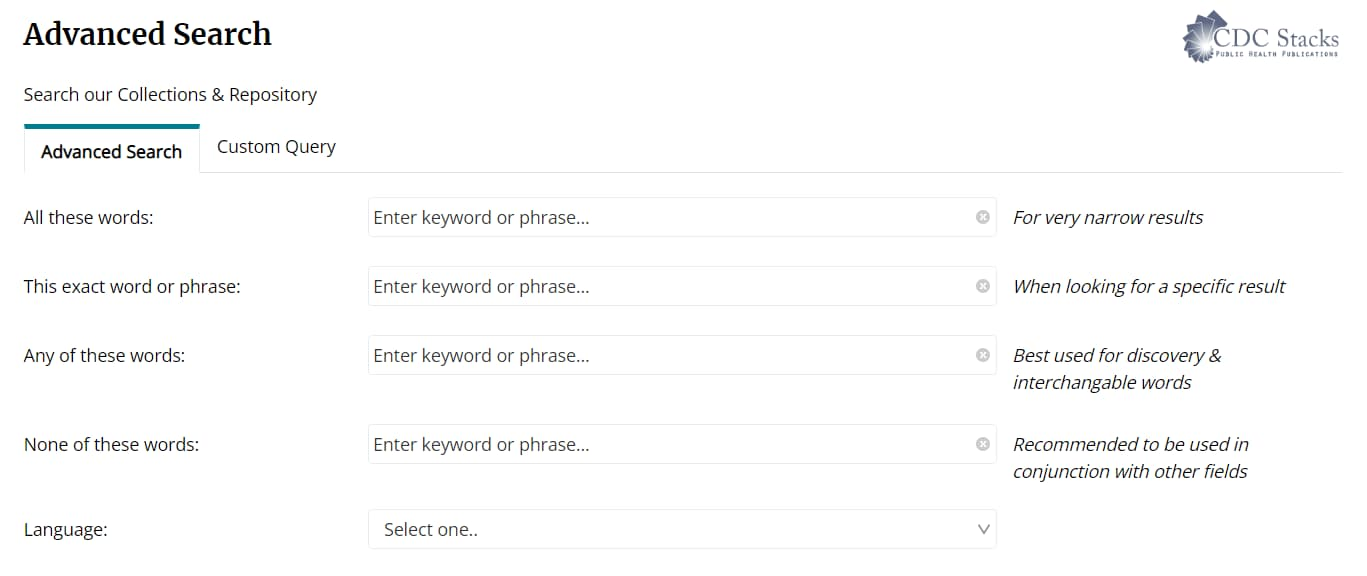
- Select one of the two tabs Advanced Search or Custom Query.
How to use Advanced Search?
All these words: Retrieves records containing all of the words.
This exact word or phrase: Retrieves records containing all of the words in that order.
Any of these words: Retrieves records containing any of the words.
None of these words: Retrieves records excluding all of the words.
How to use Custom Query?
- Select the category from the drop down and enter the value to search on.
- Select one of the operators to combine with other category and Click on Search button or Click on the Search button if you do not want to combine other category search.
The following describes the detailed use of boolean operators:
AND: Narrows your search and retrieves only records that contain all of the words it separates. The search returns documents that use every search term you entered.
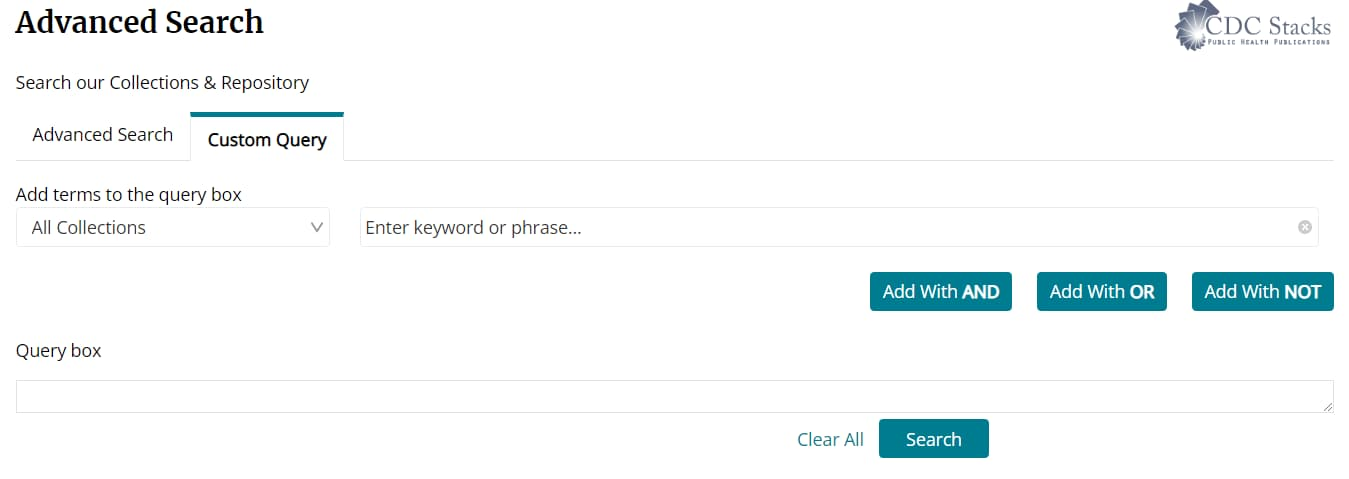
OR: Broadens your search and retrieves records containing any of the words it separates. Results include documents that contain at least one of the search terms you entered.
NOT: Narrows your search by excluding documents that contain the term following it.
What happens when you enter a phrase with multiple words?
If you enter two words separated by a space, one combined result set is returned. This input acts like first word AND second word. For example, keying public transit returns a list of documents that contain the word public combined with a list of the documents that contain the word transit . However, to obtain a more precise match from your search, phrases must be enclosed in quotation marks. Keying "public transit" (with quotation marks) returns the list of documents that contain the entire phrase public transit.
What happens when the Document Type field is entered for search criteria?
A search on documents is performed by the type of works they were published as; a book, journal article, newsletter, poster, report, etc. Select "Document Type" in the category drop-down, pick a specific document type in the drop-down that appears to the right, then click the "Search" button.
How do you search by Published Date?
When searching by published date, select Published Date from the category drop-down and then enter either a date range in both fields that appear on the right or a single date in the first field. The following formats are accepted: MM/DD/YY, MM/YYYY, or YYYY. You can also select a date from the date picker.

How do you select by Language?
To search for documents written in a specific language select "Language" in the category drop-down, pick a specific language in the drop-down that appears to the right.

What search syntax can I use?
- Phrase: enclose words in quotation marks to match an exact phrase, e.g. "public transit".
- Boolean: combine terms with AND, OR, and NOT (uppercase) to broaden or narrow your results.
What is OAI-PMH?
Some groups will want to harvest metadata descriptions of records in an archive so that services can be built using metadata from many archives. This capability is provided two ways: the Open Archives Initiative Protocol for Metadata Harvesting (OAI-PMH), described here, and a JSON/CSV/XML export described on the JSON/CSV/XML tab.
What is OAI-PMH?
The Open Archives Initiative Protocol for Metadata Harvesting (OAI-PMH) is a protocol developed for harvesting metadata descriptions of records in an archive so that services can be built using metadata from many archives. Stacks exposes metadata in Dublin Core (the oai_dc metadata prefix).
OAI-PMH is a RESTful service where each request specifies a "verb" describing what is being asked; each verb accepts its own parameters.
A full description of the specification can be found here.
OAI Verbs (case sensitive): Identify, ListMetadataFormats, ListSets, GetRecord, ListIdentifiers, ListRecords. The only supported metadata prefix is oai_dc.
Example requests:
- https://[stacksurl]/fedora/oai?verb=Identify
- https://[stacksurl]/fedora/oai?verb=ListIdentifiers&metadataPrefix=oai_dc
- https://[stacksurl]/fedora/oai?verb=ListRecords&metadataPrefix=oai_dc
- https://[stacksurl]/fedora/oai?verb=ListRecords&metadataPrefix=oai_dc&from=2025-05-01T00:00:00Z&until=2025-05-31T00:00:00Z
- https://[stacksurl]/fedora/oai?verb=GetRecord&metadataPrefix=oai_dc&identifier=oai:[repositoryIdentifier]:cdc:32147
Note on identifiers: the repository identifier (and therefore the identifier value used with GetRecord) is specific to each agency's repository. Run the Identify verb to see the repositoryIdentifier and a sampleIdentifier for your instance, then use that form (for example oai:cdc.stacks:cdc:31247) in your GetRecord requests.
Note on ListSets: ListSets is a valid verb, but Stacks does not currently define any OAI sets, so it returns an empty set list.
Paging with resumptionToken: the resumptionToken parameter is mutually exclusive with all parameters except the verb. ListIdentifiers and ListRecords results are paged; each page includes a resumptionToken element near the end of the response that you pass back to retrieve the next page.
The first request supplies the other parameters (metadataPrefix, and optionally from/until); subsequent requests pass only the verb and resumptionToken. For example, start with:
https://[stacksurl]/fedora/oai?verb=ListRecords&metadataPrefix=oai_dc&from=2025-01-31T00:00:00Z&until=2025-03-31T00:00:00Z
Then take the resumptionToken value from the response and request the next page:
https://[stacksurl]/fedora/oai?verb=ListRecords&resumptionToken=[Resumption token at the bottom from the results from previous link]
Export Metadata from the Repository (JSON / CSV / XML)
The export endpoints return repository metadata in JSON, CSV, or XML. Each endpoint has a view variant (returned inline) and a download variant (returned as a file), and each can be scoped to the whole repository or to one or more collections.
The following metadata is returned: PID, mods.*, dc.*, keywords, fgs.*, rdf.*, DS*.
JSON
- https://[stacksurl]/fedora/export/view — view repository metadata inline as JSON.
- https://[stacksurl]/fedora/export/view/collection/{pid} — view metadata for one or more collections as JSON.
- https://[stacksurl]/fedora/export/download — download repository metadata as a JSON file.
- https://[stacksurl]/fedora/export/download/collection/{pid} — download metadata for one or more collections as a JSON file.
CSV
- https://[stacksurl]/fedora/export/download/csv — download repository metadata as a CSV file.
- https://[stacksurl]/fedora/export/download/collection/csv/{pid} — download metadata for one or more collections as a CSV file.
XML
- https://[stacksurl]/fedora/export/download/xmlFormat — download repository metadata as an XML file.
- https://[stacksurl]/fedora/export/download/collection/xmlFormat/{pid} — download metadata for one or more collections as an XML file.
Multiple collections: pass the pids as a single comma-separated value, e.g. /fedora/export/download/collection/pid1,pid2,pid3
Date range: add from and until as SOLR date strings, e.g.
https://[stacksurl]/fedora/export/download/collection/{pid}?from=2017-01-01T00:00:00Z&until=2017-11-02T00:00:00Z
Paging (resumptionToken): every export response returns at most one page. The page size is the server-configured batch size (default 5000). When more records remain, the response includes an X-Resumption-Token HTTP header; request the same endpoint again with ?resumptionToken=<token> to fetch the next page. Results are sorted by fgs.lastModifiedDate descending.
Counting records first: to plan a chunked harvest, call the count endpoints to learn how many records and pages to expect:
- https://[stacksurl]/fedora/export/count — count for the whole repository.
- https://[stacksurl]/fedora/export/count/collection/{pid} — count for one or more collections.
The count response is JSON: {"total":N,"batchSize":B,"chunks":C}. The same from/until filters apply.
How to Export Citations
How to Export Citation from Single Document
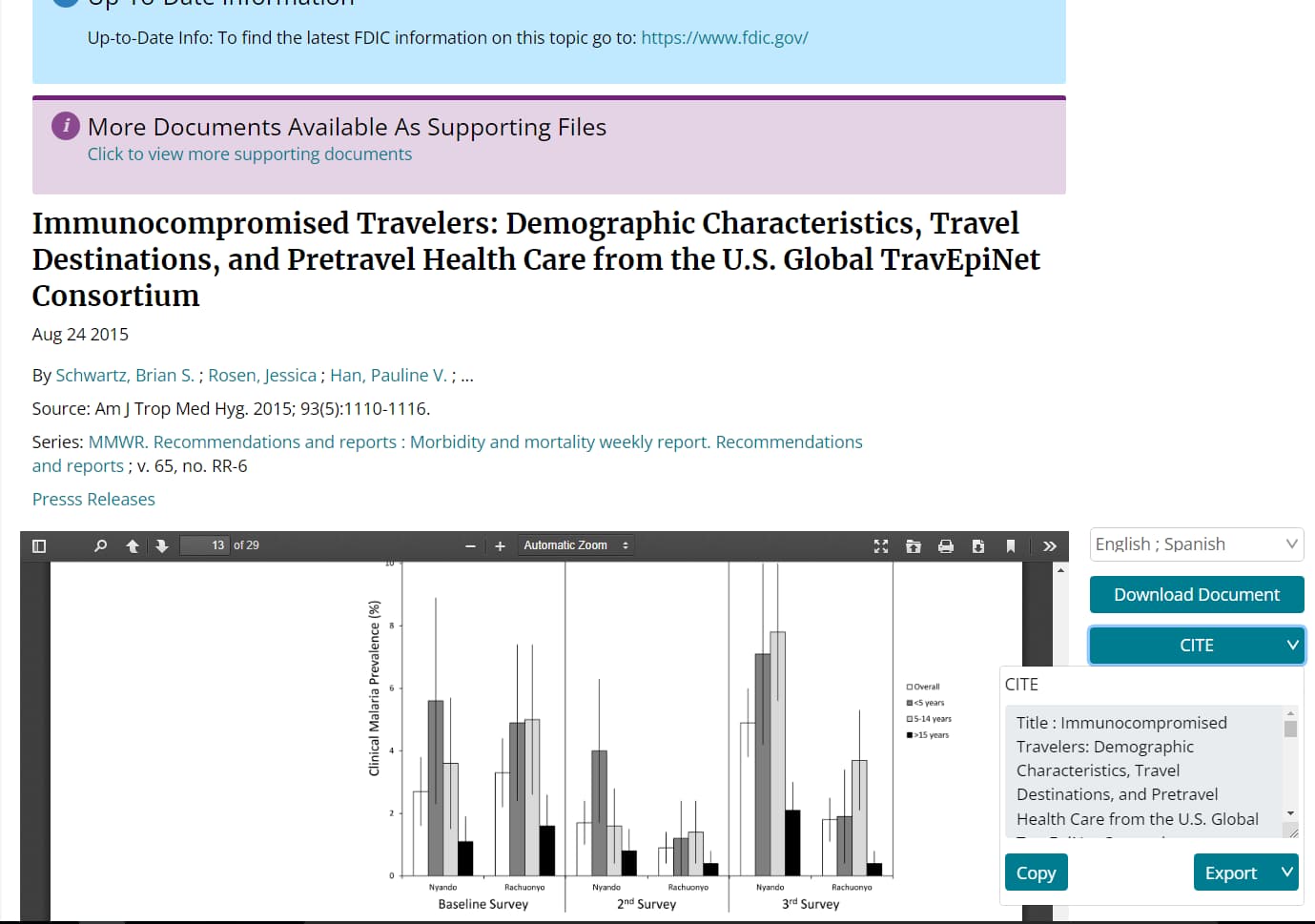
- Go to the Document Page.
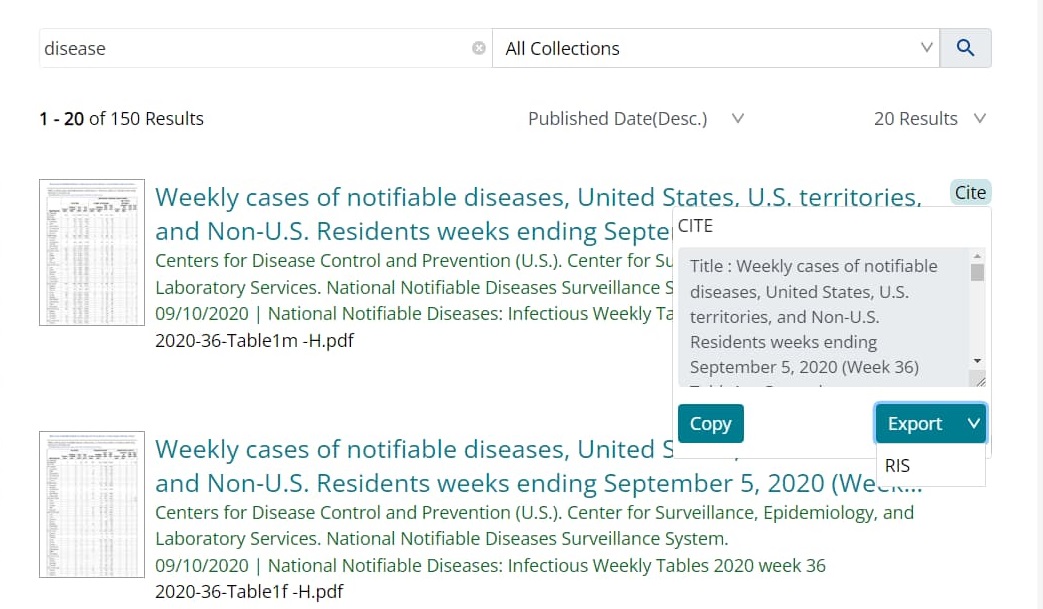
- Click on the CITE button.
- Click Copy button to copy the generic citation.
- Click on Export button.
- A dropdown list for selecting the file format will be displayed (RIS)
- Select RIS for the file format.
- Your browser then lets you open or save the exported citation; most browsers (such as Google Chrome, Microsoft Edge, and Firefox) save it directly to your Downloads folder.
How to Export Citation from Search Results Page.
- Perform a search and go to the search results page
- Click on the CITE button.
- Click Copy button to copy the generic citation.
- Click on Export button.
- A dropdown list for selecting the file format will be displayed (RIS)
- Select RIS for the file format.
- Your browser then lets you open or save the exported citation; most browsers (such as Google Chrome, Microsoft Edge, and Firefox) save it directly to your Downloads folder.
What happens after the file is exported?
Open the file in a citation reader like EndNote.
- From the search results page in Stacks, click on the Select Docs for Citation Export button.
- A link, Select all docs (Max 200), is displayed under the button and checkboxes are displayed next to every document listed in the search results
- Select all documents from the search results list by clicking the Select all docs (Max 200) link.
-
After the button is clicked:
- The checkboxes near the first 200 documents in the search results are checked
- The Select Docs for Citation Export button color is changed to orange
- The Select all docs (Max 200) is changed to Unselect all
- Click the Select Docs for Citation Export button
- An option is displayed to Open, Save or Cancel the selected citations.
- To view the citation data in a citation reader like EndNote, save the file and open it from the reader.
General FAQs
What is CDC Stacks Library?
The CDC Stacks Library is a digital archive of scientific research and literature produced by the Centers for Disease Control and Prevention (CDC). It provides free online access to a vast collection of scientific research and literature produced by the CDC. The archive includes current research as well as historical documents, such as the first 30 volumes of the Morbidity and Mortality Weekly Report (MMWR).
What is a Collection?
A Collection in the CDC Stacks Library refers to items that address a shared topic. Searching within a collection helps narrow your search.
Who are Authorized Users of the CDC Stacks Repository?
The repository is available indefinitely for public health professionals, researchers, and the public, providing free access.
What Documents are Listed in the "Recent Additions" Area of the Site?
The “Recent Additions” section lists documents newly added to the repository within the last 30 days.
Why must I wait to download the articles on the "Coming Soon" page?
These journal articles have been placed under a Public Access Embargo. This is the period in which access to academic journals is not allowed to users who have not paid for access (or have access through their institution).
The CDC Public Access to Publications Policy was developed to ensure that these journal articles may be made freely available to the public.
How often is the home page updated?
The spotlight highlights and quick links are added and updated by the agency catalogers based on the agency's need and timelines.
How do I view or download a document?
Open a document's page from the search results or from within a collection. When a full-text version is available, use the document's View / Download link to open or save the PDF. Some records also provide a Dataset Download URL for associated data files. You can also export a document's citation using the CITE button (see the Citation Export tab).
I can't find a document. What can I do?
- Check spelling, and remove or wrap special characters (such as a colon) in quotation marks.
- Broaden your terms, or combine them with OR to widen the results.
- Search across All Collections rather than a single collection.
- Use Advanced Search to target a specific field such as author, document type, or published date.
- The item may be under a Public Access embargo and listed on the Coming Soon page, or it may not yet be in the repository.
- Still stuck? Visit the Contact Us page for help.
How to Request for a New Publication to be Added to Stacks Library
Before You Begin
- Ensure the publication is authored by at least one current or former CDC employee, including contractors, or that it has received CDC funding.
- Confirm the publication is Section 508 compliant. While CDC Stacks can add non-508 compliant archival and historical materials, you must provide a compliant version if requested by a user.
- Note that publications in formats such as .html, .htm, or executable files (.exe, .bat, .jar, .war, etc.) are not accepted in CDC Stacks.
- Prior to adding files to the Stacks repository, an anti-virus check is performed to ensure security.
- If unsure about the allowable file format, submit a help desk ticket to PublishingHD@cdc.gov.
Also, please search Stacks to ensure that the item is not already preserved in the repository. You may wish to use the Advanced Search feature, as it allows you to fine tune your search.
Steps
-
Complete the Excel Ingest Template: Fill in as much information as possible. The following fields are required for an item to be added to CDC Stacks:
- Title
- Description
- Subject
- Corporate Author
- Published Date
- Main Document URLs (or attach documents, or provide document path in the email request)
It's important to complete the non-mandatory fields provided in the template as well. The additional information enhances the discoverability of your content.
- Email the Completed Template: Send the completed Excel template to the CDC Stacks Helpdesk at PublishingHD@cdc.gov and copy Catherine Mukua (ovk7@cdc.gov) and Leighton Christiansen (xrl7@cdc.gov). Attach your document/s to the email. PDF is the preferred format where feasible.
- Processing Time: Allow 5 business days for your publication to be added to Stacks.
- Edits and Document Swaps: If you need to edit and therefore swap your existing document/s, re-send the edited version and allow 2-3 business days for the update to be made.
- Notification: You will receive a notification once your request is completed.
How do I request assignment of a Digital Object Identifier (DOI) for my materials?
To assign a DOI to your publication, follow these steps:
- Contact Your Publisher:Most publishers provide DOIs upon publication.
- Request from CDC Stacks: If your publisher does not provide DOIs, CDC Stacks can generate one for you through Crossref. Send a request to PublishingHD@cdc.gov.
What Types of Materials Accepted in the CDC Stacks Library?
Any publication authored by one or more CDC employees (including contractors) or funded by the CDC can be added, provided it is Section 508 compliant. Exceptions are made for archival and historical materials, but a 508 compliant version must be provided upon request. The following file types are not accepted: .html, .htm, or exe.
Where can I find information on 508 Compliance?
As noted on the U.S. Department of Health and Human Services Digital Accessibility page, "As a Department of the federal government, we are required to abide by the Section 508 legislation. Section 508 of the Rehabilitation Act of 1973, codified at section 29 USC 794d, as amended, ensures those with disabilities have equal access to government information as contained on information and communications technology (ICT), and thereby to the government employment, programs and services to which all citizens are entitled."
To be more specific, all public facing electronic documents published after March 23, 2018, must be accessible according to the Information and Communication Technology (ICT) Standards and Guidelines 83 FR 2912 Final Rule as published in the Federal Register https://www.federalregister.gov/documents/2017/01/18/2017-00395/information-and-communication-technology-ict-standards-and-guidelines
You can find more information on Section 508 Compliance at the following links:
Search Results FAQs
Can I sort my Search Results?
Search results within a collection can be sorted by Relevance, Last Modified Date, Title, and Published Date.
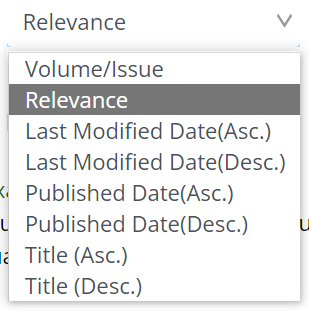
Relevancy is the quality of results returned from a query, encompassing both what documents are found, and their relative ranking (the order that they are returned to the user.)
How are documents scored ?
Here is the link if anyone would like to know exact mathematical formulas used behind calculating score.
Mathematical formulas used behind calculating score
By default, a "TF-IDF" based Scoring Model is used. The basic scoring factors:
- TF stands for term frequency - the more times a search term appears in a document, the higher the score
- IDF stands for inverse document frequency - matches on rarer terms count more than matches on common terms
- coord is the coordination factor - if there are multiple terms in a query, the more terms that match, the higher the score
- lengthNorm - matches on a smaller field score higher than matches on a larger field
- index-time boost - if a boost was specified for a document at index time, scores for searches that match that document will be boosted.
- query clause boost - a user may explicitly boost the contribution of one part of a query over another.
Stacks uses boost at query time on following metadata fields
- Title^10
- Personal Author(s)^5
- Corporate author(s)^5
- Conference Author(s)^5
- Description/Abstract^2
- Content Note^2
- Subject(s)^3
- Genre^3
- Document Type^2
- Series^2
- Published Date^2
- PMID^2
- PMCID^2
- Language^2
- Source^2
- Publisher URL^2
- Digital Object Identifier^10
- Grants^10
- Local Corporate Name^10
- Creator^5
- Corporate Creator^5
- Report Number^10
- Keywords^10
- Main Document Content^2
Doing an explicit sort in the SOLR query will ignore the relevancy scores.
Filters FAQs
What is a filter?
A filter allows you to narrow your Search based on pre-defined topic categories.
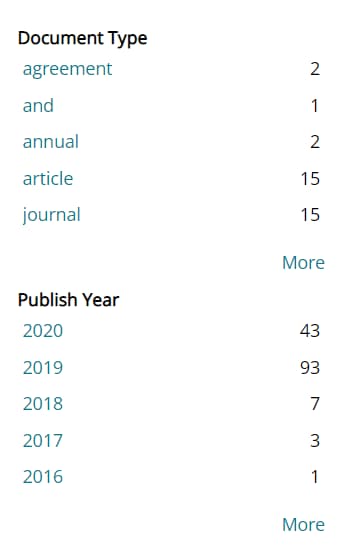
How can I suggest another filter to be added to the collection?
You can email us at publishinghd@cdc.gov.
Visit our Contact Us page to get in touch with our support teams.